
Start with Just One Image
AI Detail Page & Marketing Image
Guide
Baejji is an AI-powered service that generates professional product detail pages from just one image, and creates marketing images with a single chat message.
No design tools or coding skills needed — anyone can create stunning results in 5 minutes.
This guide covers every feature for both detail pages and marketing images step by step.
Baejji is perfect for you if...
- You run an online store and want to create detail pages quickly without outsourcing to a designer
- You launch new products frequently and need detail pages ready immediately without waiting on a designer
- You don't know how to use Photoshop or Illustrator but still want professional-quality results
- You need banners, social media ads, and thumbnails quickly without outsourcing every time
Here's how Baejji is structured
Workspace
Workspace
A dashboard where you can manage all your generated detail pages, start new projects, or continue editing existing ones at a glance.
Editor
Editor
A real-time editing space where you can preview AI-generated detail pages and refine them using AI chat or image editing tools to get exactly what you want.
Export
Export
Download your finished detail pages as high-resolution images (PNG, JPG, WebP), or convert them into fully editable native Figma elements using the Figma plugin.
Marketing Canvas
Marketing Canvas
Describe the marketing image you want via chat and AI generates banners, social media ads, thumbnails, and more. Arrange and resize on the canvas, then export instantly.
Credits
Credits
Points consumed when using AI features like detail page generation, chat editing, image editing, and marketing image creation. Free credits are provided upon sign-up so you can try the service right away.
Just 3 steps
- 1
Upload product image
Upload product image
All you need is one product photo to get started. Enter the product name, category, and language, then optionally add any key points or special requests you'd like highlighted. Uploading multiple images produces even richer results.
- 2
AI generates detail page
AI generates detail page
Hit the generate button and AI will analyze your inputs to create a detail page with sales-optimized layouts, copywriting, and image placement — all within seconds.
- 3
Edit & Export
Edit & Export
Refine the generated detail page in the editor using AI chat or image editing tools. Once you're satisfied, download it as a high-resolution image or export directly to Figma via the plugin.
Detail Page Creation
Here's how to get started
Upload a product image and enter basic info. AI will analyze your product's characteristics and automatically generate a detail page with sales-optimized layouts and copywriting tailored to your category.
- 1Click 'Create Detail Page' in the workspace to start a new project
- 2Upload one or more product images and enter the product name, category, and language
- 3Optionally write your requirements or click 'AI Draft' to auto-generate them
- 4Click the generate button — your detail page will be ready within seconds
Image Photography Guide
AI needs high-quality product images to generate the best results. Please refer to the recommendations and examples below when preparing your images.
💡 Image recommendations
- We recommend high-quality images with a resolution of 1000px or higher
- Product photos with a white or solid-color background produce better results
- Center the product in the frame and ensure it fills at least 70% of the image
- Photos taken under natural or even lighting provide more accurate color reproduction
- Use original images without watermarks, logos, or text overlays
- Uploading images from multiple angles (front, side, detail shots) creates richer detail pages
Good examples

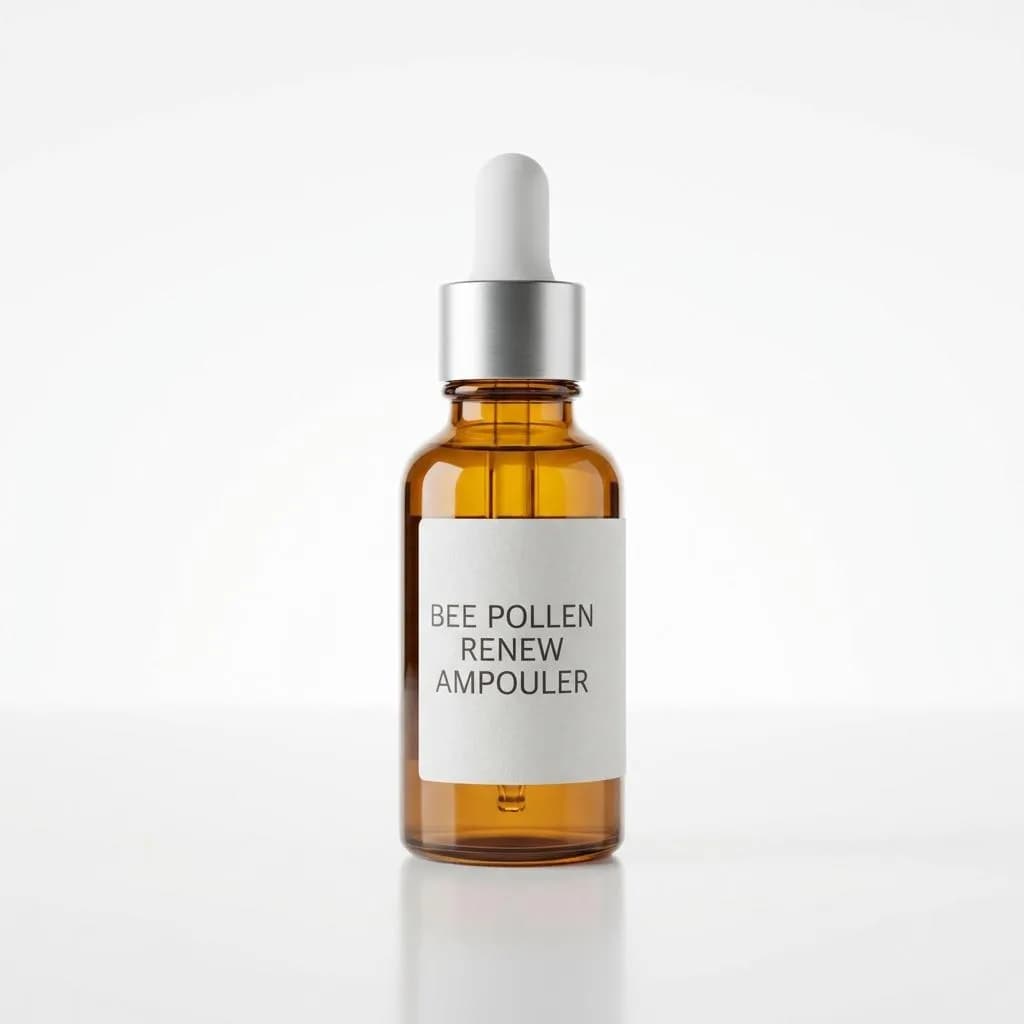
- Clean white background
- Product centered and large
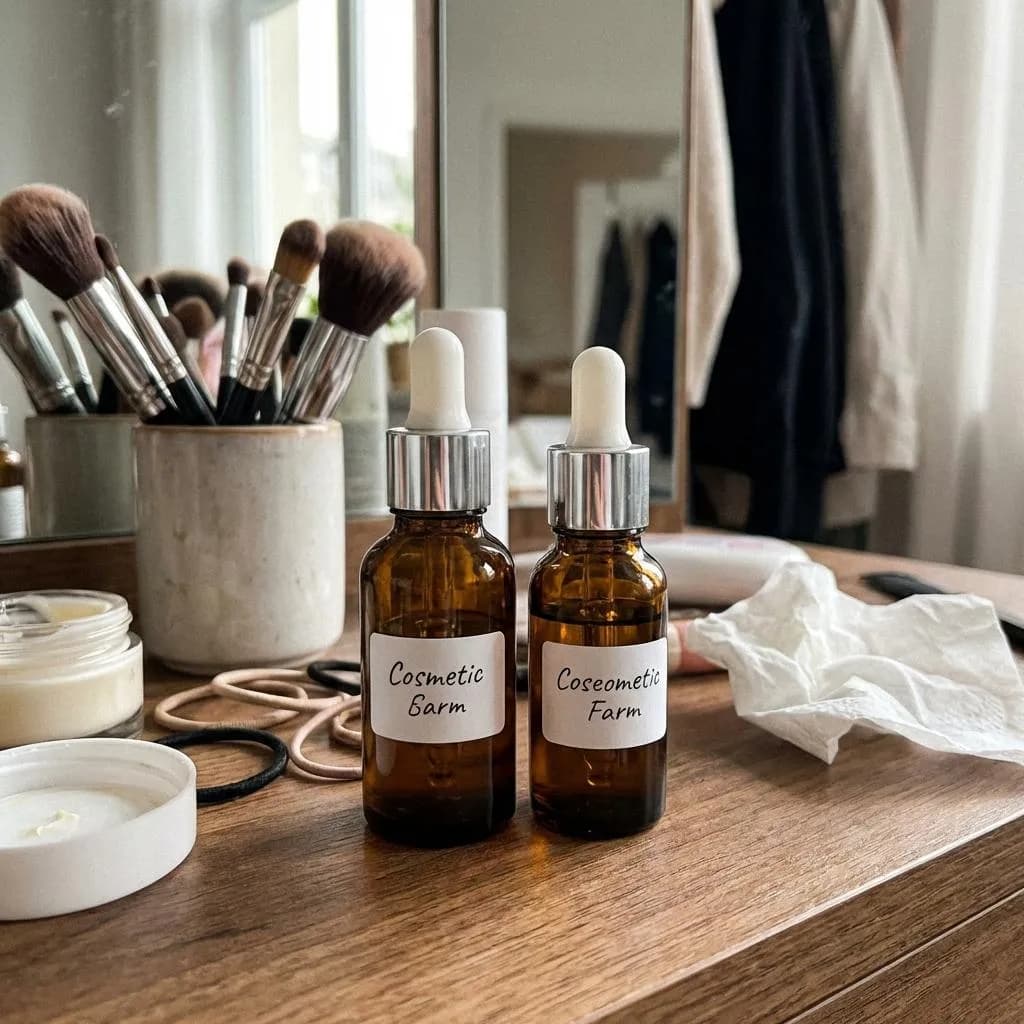
Bad examples
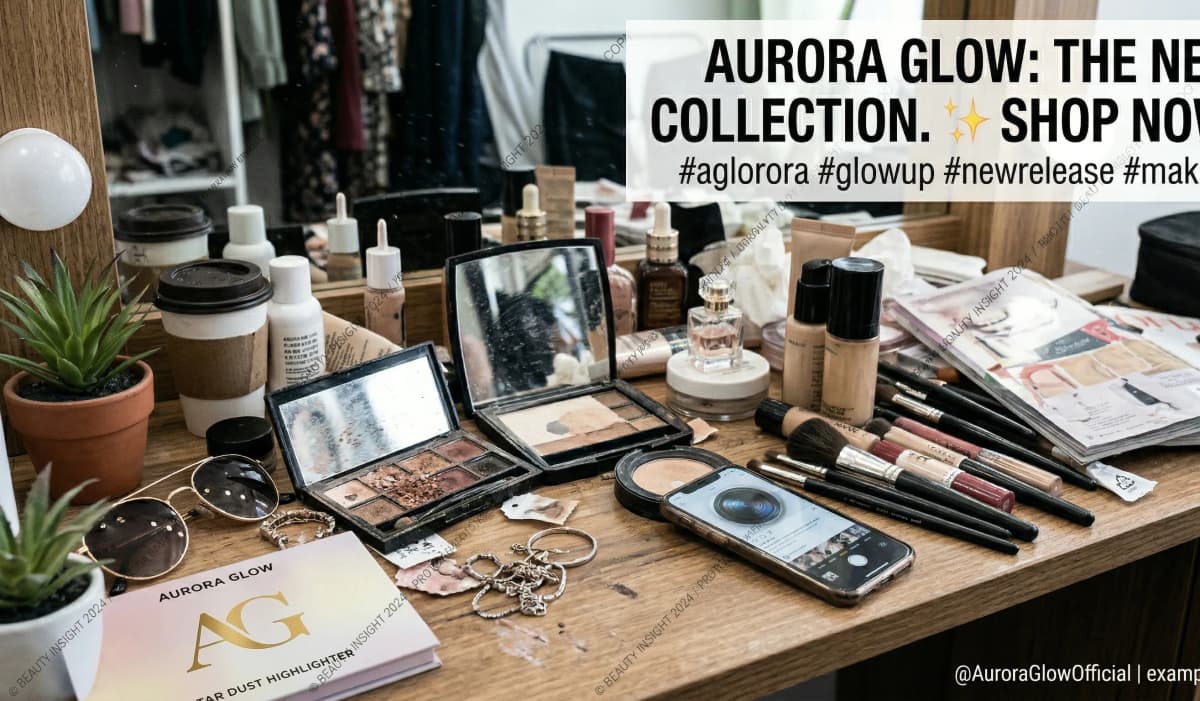
- Cluttered background with other objects
- Blurry or low-resolution image
Retouch your detail page
freely with AI chat
No coding or design tools required. Simply type your edit request in natural language in the chat panel on the right side of the editor. AI understands your intent and applies changes to the detail page immediately. You can change colors, modify text, adjust layouts, and much more.
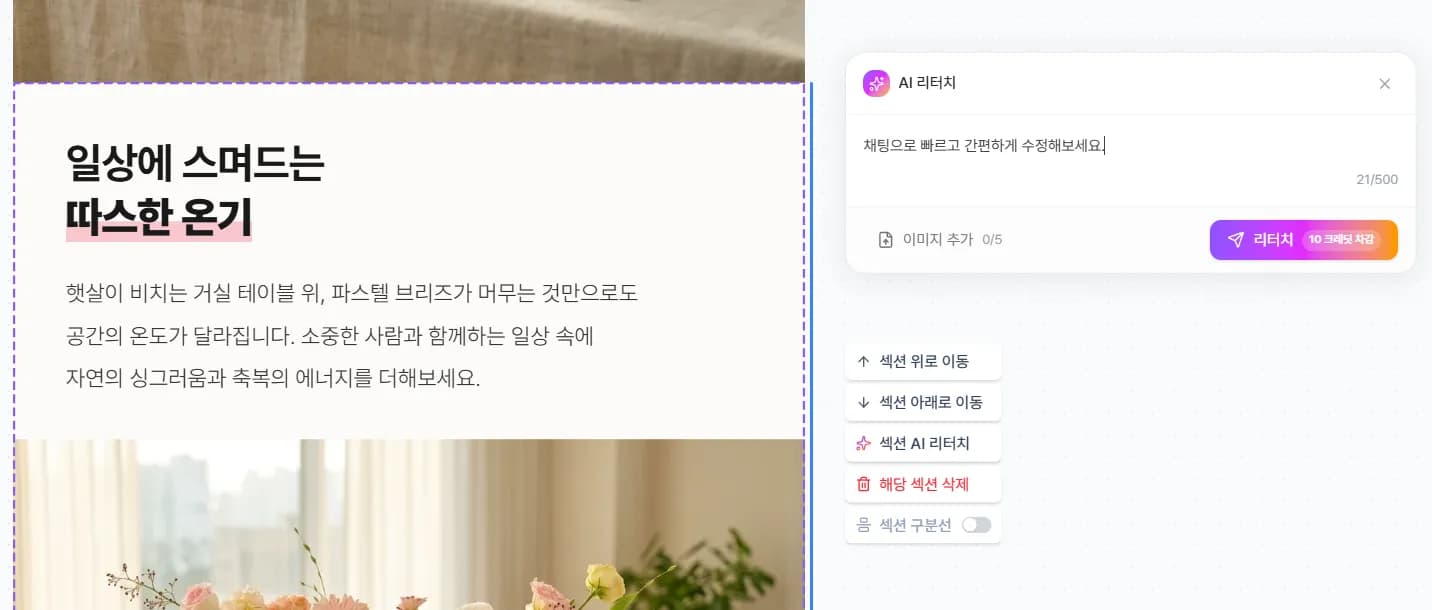
Try requests like these
"Change the background to white and give it a clean, minimal feel"
Change colors, mood, and design tone using natural language.
"Make the product description shorter and more impactful"
AI instantly applies your copywriting edits.
"Increase the headline font size and make it bold"
Adjust font size, weight, alignment, and other typography settings.
Select exactly what to edit
A precision editing feature for modifying specific image areas within your detail page. Use the brush tool to mask the area you want to change, then describe how you'd like it modified. AI will seamlessly transform only that region. Perfect for background replacement, removing unwanted elements, or adjusting colors in specific areas.
- 1Select the image in the editor and use the brush tool to paint over the area you want to change
- 2Describe specifically what you'd like changed (e.g., 'Change the background to sky blue')
- 3AI naturally modifies only the masked area and shows you the result
Continue working directly in Figma
Convert detail pages generated in Baejji into fully editable native Figma elements — not flat screenshots. Every text layer, image, and shape is separated and editable. Designers can directly modify text, swap images, and rearrange layouts in Figma, making it a seamless addition to your existing design workflow.
- Converted to editable Figma elements with text, images, and shapes fully separated — not flat screenshots
- Edit text directly, replace images, change colors, rearrange layouts — full editing capabilities
- Integrates seamlessly into your existing design system and team workflow for follow-up work
- 1Install the Baejji plugin from the Figma Community or by clicking the button below
- 2Go to the API Key page in the left menu of your workspace to generate and copy your key
- 3Copy the workId of the project you want to export from the Baejji workspace
- 4Open Figma and launch the Baejji plugin
- 5Enter the workId and API Key in the plugin and click import — automatically converted to native elements
Marketing Image Generation
Create marketing images with AI
Describe the marketing image you want via chat and AI generates banners, social media ads, thumbnails, and more. Platform-specific resolution presets for Instagram, Facebook, YouTube, and others are supported. Attach reference images for more accurate results.
What you can create
Ad Banners
Promo & discount banners
Sale Promotions
Seasonal sale images
SNS Content
Instagram & Facebook feeds
Video Thumbnails
YouTube & Reels covers
Event Notices
Coupon & giveaway events
Product Showcases
New & best-seller features
- 1Click 'Create Marketing Image' in the workspace to get started
- 2Select a resolution preset (Instagram, Facebook, YouTube, etc.), choose the number of images (1–7), and set the language
- 3Describe the desired look and content in the chat, and attach reference images if needed
- 4AI generates the images and automatically places them on the canvas
Supported resolution presets
- Social Media: Instagram Square/Portrait/Story, Facebook Ad, YouTube Thumbnail, Pinterest Pin
- E-commerce/Messenger: Smartstore Product, KakaoTalk Channel Post
- Standard Ratios: Square, Wide, Wide Banner (3:1), A4 (200 DPI)
- Custom: Enter your own width and height (multiples of 16, max 3:1 ratio)
Refine your marketing images
freely via chat
Don't worry if the first result isn't perfect. Request additional generations or modifications via chat and AI applies them instantly. Continue the conversation to refine your results until you're satisfied.
"Make it brighter and more vibrant overall"
Adjust colors and mood using natural language.
"Change the text to 'Summer Sale 50% OFF'"
Specify text content directly within the asset.
"Create a vertical version with the same look"
Request additional image generation directly via chat.
Arrange freely on the canvas
Generated marketing images are automatically placed on the canvas. Drag to reposition, grab handles to resize, and arrange multiple images into your desired layout.
Drag & Resize
Drag & Resize
Click an image to select it, drag to move, and use 8-directional handles to resize. Hold Shift to maintain aspect ratio while resizing.
Alignment Guides
Alignment Guides
Alignment lines and spacing indicators appear automatically when moving images near others, helping you create clean, precise layouts.
Zoom & Pan
Zoom & Pan
Ctrl+mouse wheel to zoom in/out. Hold Space and drag to pan freely across the canvas.
Undo & Redo
Undo & Redo
Ctrl+Z to undo, Ctrl+Shift+Z to redo. History is preserved for up to 50 actions.
Export in your preferred format
Download your finished marketing images as high-resolution images. Select the image to export on the canvas, then configure format, size, and quality before downloading.
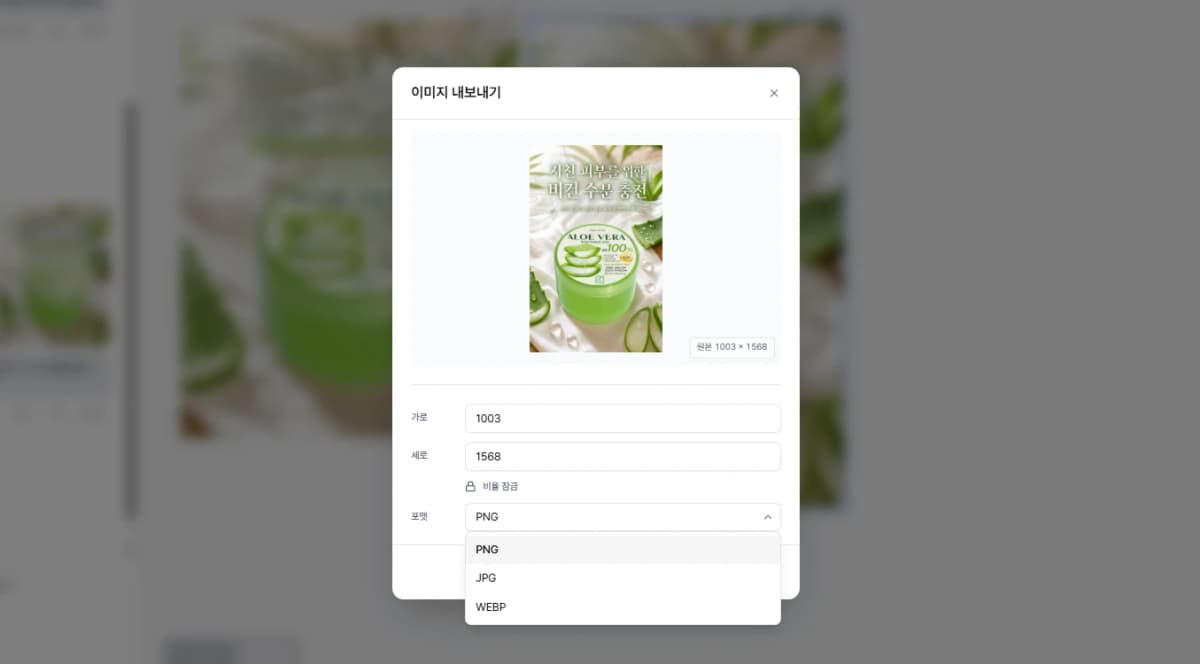
- 1Click to select the image you want to export on the canvas
- 2Click the 'Export' button in the top toolbar
- 3Set the format (PNG, JPEG, WebP), size, and quality, then click 'Download'
Supported formats: PNG (lossless), JPEG (lossy, adjustable quality), WebP (web-optimized, adjustable quality)
Learn More
How credits work
All AI features in Baejji run on a credit-based system.
Using credits
- Credits are deducted when you use AI features such as detail page generation, chat editing, image editing, and marketing image creation.
- Free credits are provided upon sign-up, so you can start using the service immediately without any payment.
Recharging credits
- You can recharge credits from the workspace page.
- Various payment methods are supported, and credits are available immediately after recharging.
Frequently Asked Questions
Start creating detail pages and marketing images now
Get 1 free generation credit just for signing up
Get started for free